Set Up Round Sync to Upload Olivecast Videos to Google Drive
Set Up Round Sync to Upload Olivecast Videos to Google Drive
A step by step guide for Android users
Olivecast records videos on your Android device. Round Sync can upload those videos to your Google Drive folder using an hourly Trigger. Use a one-way Copy task so recordings already in Drive stay there if you remove them from the device.
Learn more about Olivecast at olivecast.com.
Before you start
- Install Olivecast on your Android device. Install Round Sync from F-Droid: https://f-droid.org/packages/de.felixnuesse.extract/
- Record a short test video in Olivecast. In the Files app, confirm where it was saved. The example device uses /storage/emulated/0/DCIM/olivecast; your device may use a different folder.
- Choose the Google account that will receive your videos and make sure it has enough Drive storage.
Connect Google Drive in Round Sync
- Open Round Sync, go to Remotes, and tap Add (+).
- Name the remote, for example gdrive, and select Google Drive (drive).
- Leave Client ID and Client Secret blank to use the default rclone credentials, then tap Next.
- Keep Use Auto-Config enabled, tap Log in, and sign in to your Google account in the browser.
- Review the permissions. If a warning appears, confirm the app and account before continuing.
- Return to Round Sync after the success message. Leave the root path blank to use your Drive root, then tap Save.
Allow access to Olivecast videos
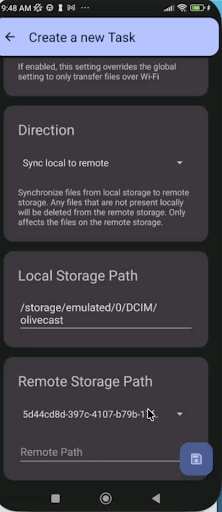
- Set Local Storage Path to the folder you verified in the Files app. In the example, it is /storage/emulated/0/DCIM/olivecast.
- If your version requires a local remote, go to Remotes, tap Add (+), choose Local / Storage Access Framework (local), and select the Olivecast folder.
- In Android's folder picker, tap Use This Folder and Allow, then Save.
- If Android refuses access, locate the video again in Files and grant access through Android's folder picker.
Create a one-way Copy task
- Open Tasks, tap Add (+), and name the task Olivecast to Drive.
- Select the verified Olivecast folder as Local Storage Path. If your screen uses Source Remote, select the local remote for that folder.
- Select your Google Drive remote as Remote Storage Path or Destination Remote. Enter Olivecast Recordings as the destination folder path if you want a separate folder in Drive.
- Choose Copy from local storage to the remote. Do not leave Direction set to Sync local to remote: the option shown in the screenshot deletes remote files that are no longer on the device.
- Save the task and tap Play to upload your first video.
Example task screen. Change the displayed Sync local to remote direction to a non-deleting Copy option:
Create an hourly Trigger
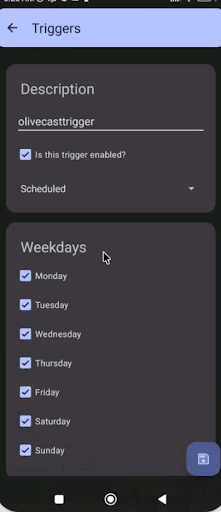
- Create a Trigger and give it a name, such as olivecasttrigger.
- Enable the Trigger and choose Scheduled.
- Select all seven days and set the interval to hourly.
- Assign the Olivecast Copy task to the Trigger, then save it. Verify the hourly interval in Round Sync; it is not visible in the example screenshot.
Example Scheduled Trigger with all seven days enabled. Confirm the hourly interval separately:
The hourly Trigger runs the task on its schedule. A new video may take up to the next run to appear in Drive. Keep the device powered and connected to a network.
Verify the upload in Google Drive
- Record another short Olivecast video. Run the task manually or wait for the next hourly Trigger.
- Open Google Drive in a browser with the same Google account. Find the Olivecast Recordings folder and play the uploaded video.
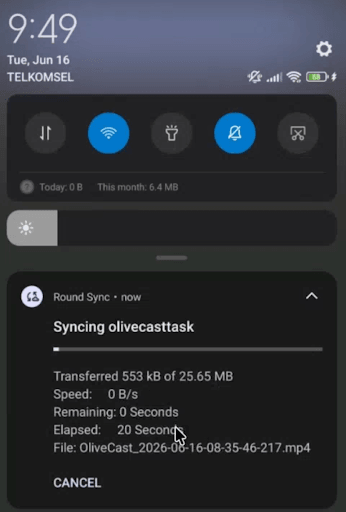
Round Sync transfer notification while an Olivecast video uploads:
- If the video is missing, review the Round Sync task result, confirm the local folder and Drive destination, and run the Copy task again while online.
Limitations of this setup
- Each user must sign in to a Google Drive account in Round Sync on their own device.
- This setup does not give an administrator one central view of videos from all users.
- Round Sync runs separately from Olivecast; each device's task and Trigger must be configured.
Olivecast Enterprise
If your organization needs a managed solution for a team, request an Olivecast Enterprise demo here: